
Ever tried copying a file or installing software, only to be stopped by an error message that makes zero sense? If you’ve seen something like “Data error (CRC check)”, you’re not alone. So, what is a CRC error, and why does it keep getting in the way?
A CRC error (Cyclic Redundancy Check error) happens when your computer detects corrupted data during a transfer or read process. In simple terms, the data you’re trying to use doesn’t match what your system expects—so it throws up a red flag.
This article breaks it all down in plain English: what a CRC error is, what causes it, how to fix it, and how to avoid it in the future.
What Is a CRC Error? (Cyclic Redundancy Check Explained)
A CRC error occurs when data verification fails. CRC, or Cyclic Redundancy Check, is a method computers use to ensure data integrity during storage or transmission.
Here’s the basic idea:
-
A CRC value is calculated when data is created or sent
-
That value is checked again when the data is read or received
-
If the values don’t match, a CRC error appears
This means the data was altered somewhere along the way—by hardware issues, bad sectors, or even faulty cables.
Why CRC Errors Exist in the First Place
CRC checks are actually a good thing. They prevent corrupted or incomplete data from being used, which could otherwise cause crashes, incorrect installations, or system instability.
Without CRC checks, your computer would blindly trust damaged files—and that’s a much bigger problem.
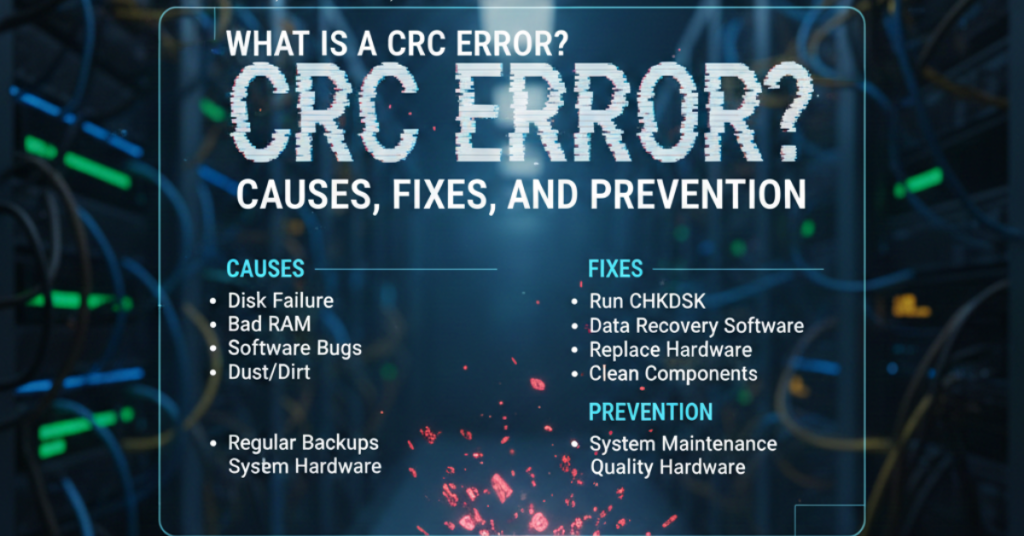
Common Causes of CRC Errors
CRC errors don’t just happen randomly. They’re usually tied to a specific issue, often hardware-related.
Most common CRC error causes include:
-
Bad sectors on a hard drive or SSD
-
Damaged or corrupted files
-
Faulty USB drives or external storage
-
Loose or defective SATA/USB cables
-
Errors during file downloads
-
Failing optical discs (CDs/DVDs)
If CRC errors appear frequently, it’s often a warning sign that something physical is starting to fail.
When and Where You’ll See CRC Errors
CRC errors can pop up in different situations, which makes them confusing for users.
Typical scenarios include:
-
Copying files from one drive to another
-
Installing software or games
-
Extracting ZIP or RAR archives
-
Reading data from external drives
-
Running disk checks
The error message might look different, but the underlying problem is the same: data integrity failure.
How to Fix a CRC Error (Step-by-Step)
Fixing a CRC error depends on what’s causing it. Here are the most effective solutions, starting with the simplest.
1. Run a Disk Check (CHKDSK)
This scans your drive for bad sectors and file system errors.
-
Open Command Prompt as Administrator
-
Type:
chkdsk /f /r -
Restart your computer if prompted
This is often enough to resolve CRC errors caused by disk issues.
2. Re-download or Re-copy the File
If the error happens with a specific file:
-
Delete the corrupted version
-
Download it again from a trusted source
-
Avoid interrupted downloads
CRC errors during downloads usually mean the file didn’t arrive intact.
3. Check Cables and Ports
This one’s underrated but important.
-
Replace USB or SATA cables
-
Try a different port
-
Avoid cheap or damaged adapters
-
A bad cable can corrupt data mid-transfer without you realizing it.
4. Use File Repair or Recovery Tools
If the file is important:
-
Use archive repair tools (for ZIP/RAR files)
-
Try data recovery software for damaged drives
These tools can sometimes rebuild partially corrupted data.
5. Replace Failing Hardware
If CRC errors keep happening across different files:
-
Test the drive using SMART tools
-
Back up your data immediately
-
Consider replacing the drive
Persistent CRC errors are often an early warning of drive failure.
How to Prevent CRC Errors in the Future
You can’t eliminate CRC errors entirely, but you can reduce the risk.
Best practices include:
-
Always safely eject external drives
-
Keep your storage devices cool
-
Replace old cables proactively
-
Use reliable download sources
-
Run regular disk health checks
Think of CRC errors as a reminder to treat your data—and hardware—with care.
FAQs About CRC Errors
What does CRC error mean in simple terms?
It means your computer detected corrupted data and stopped the process to prevent further issues.
Is a CRC error serious?
Occasional CRC errors aren’t critical, but frequent ones may signal failing hardware.
Can CRC errors be fixed permanently?
Yes, if caused by software or cables. Hardware-related CRC errors usually require replacement.
Do CRC errors mean data is lost?
Not always. In many cases, the data can be recovered or re-downloaded.
Are CRC errors caused by viruses?
Rarely. CRC errors are usually hardware or data-transfer related, not malware.
Conclusion: Understanding CRC Errors Saves Your Data
So, what is a CRC error really telling you? It’s your system’s way of saying, “Something isn’t right with this data.” While annoying, CRC errors are protective by design.
By understanding their causes, knowing how to fix them, and taking preventive steps, you can avoid data loss and extend the life of your hardware.
Next step: Explore related articles on disk health, data recovery tools, or storage optimization to keep your system running smoothly.