
Payment errors are frustrating—especially when they involve subscriptions you didn’t mean to renew. If you’re searching for how to cancel DashPass after a payment error, you’re not alone. Many DoorDash users run into unexpected charges due to failed payments, card issues, or auto-renewals they forgot about.
This guide walks you through exactly how to cancel DashPass, what to do if you were charged by mistake, and how to protect yourself from future billing problems. No fluff, no confusing jargon—just clear steps that actually work.
What Is DashPass and Why Payment Errors Happen
DashPass is DoorDash’s monthly subscription that offers free delivery and reduced service fees on eligible orders. While it’s convenient, payment errors can happen for several reasons, including:
-
Expired or declined cards
-
Multiple payment attempts
-
Auto-renewal after a free trial
-
Billing glitches in the app
In some cases, DashPass renews even though the payment initially failed—leading to surprise charges later.
How to Cancel DashPass After a Payment Error
Canceling DashPass is straightforward once you know where to look. Follow the steps below based on the device you’re using.
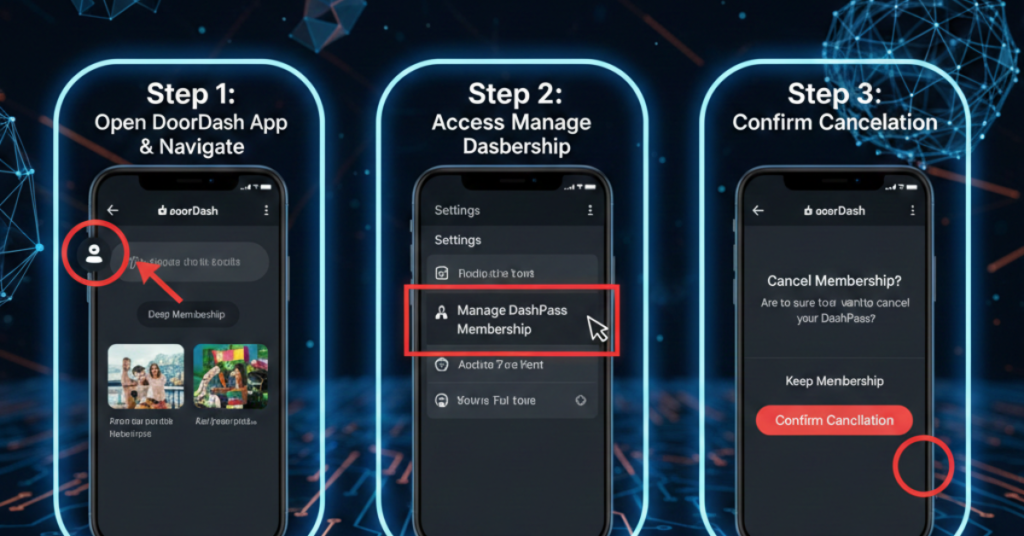
Cancel DashPass Using the DoorDash App
This is the most common and fastest method.
-
Open the DoorDash app
-
Tap your profile icon (top-right corner)
-
Select “DashPass”
-
Tap “Manage DashPass”
-
Choose “Cancel Membership”
-
Follow the prompts to confirmOnce canceled, your DashPass benefits remain active until the end of the billing cycle.
Cancel DashPass on Desktop (Web Browser)
If you prefer using a computer:
-
Go to DoorDash.com and log in
-
Click your profile icon
-
Select DashPass from the menu
-
Click Manage Membership
-
Choose Cancel DashPass and confirm
This method is helpful if the app is glitching or not loading properly.
What to Do If You Were Charged After a Payment Error
Canceling DashPass stops future charges, but what about the money already taken?
Request a Refund from DoorDash Support
DoorDash doesn’t guarantee refunds, but many users successfully receive one—especially when a payment error is involved.
Here’s how to contact support:
-
Go to Help > Contact Support in the app
-
Choose Payments and Charges
-
Explain the payment error clearly and politely
Tips for better results:
-
Mention the exact charge date
-
Note if you didn’t use DashPass benefits
-
Reference any failed payment notifications
Will Canceling DashPass Stop All Charges?
Canceling prevents future renewals, but it won’t automatically reverse past charges. That’s why contacting DoorDash support is essential if you were billed due to an error.
Also, keep an eye on your bank statements for pending or duplicate charges.
How to Avoid DashPass Payment Errors in the Future
A few small steps can save you a lot of hassle later.
-
Turn off auto-renew reminders
-
Update your payment method regularly
-
Cancel before the billing date if unsure
-
Set calendar alerts for free-trial endings
If you rarely use DoorDash, DashPass may not be worth keeping active.
FAQs About Canceling DashPass After a Payment Error
Can I cancel DashPass immediately after being charged?
Yes, you can cancel anytime. However, refunds require contacting DoorDash support separately.
Does DoorDash refund DashPass payment errors?
Refunds are handled case by case. Payment errors, duplicate charges, or unused subscriptions have higher approval chances.
Will I lose DashPass benefits after canceling?
No. You keep benefits until the current billing period ends.
Can I cancel DashPass through my bank?
You can dispute the charge, but it’s better to cancel through DoorDash first to avoid account issues.
What if DashPass won’t cancel?
Try canceling on a desktop browser or contact DoorDash support directly.
Final Thoughts
Knowing how to cancel DashPass after a payment error puts you back in control of your money. The process is simple, but acting quickly makes all the difference—especially if you’re hoping for a refund.
If this guide helped, consider checking out related articles on managing subscriptions or avoiding auto-renewal traps. A few minutes of prevention can save you real money down the line.