
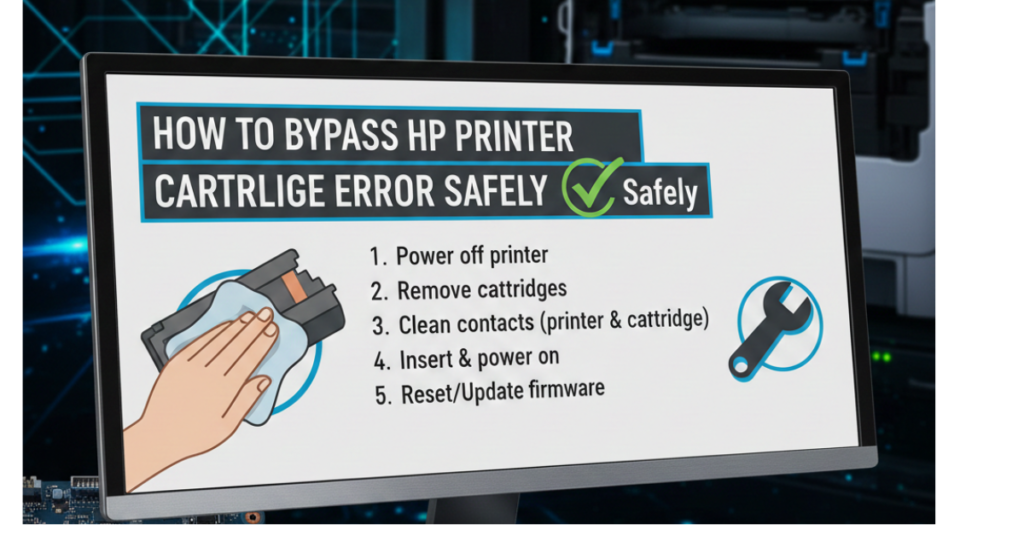

If you’ve ever rushed to print something important only to be stopped by an annoying error message, you’re not alone. Learning how to bypass HP printer cartridge error problems has become a surprisingly common need—especially as HP printers grow stricter about cartridges.
In this guide, we’ll walk through why these errors happen, what actually works to fix or bypass them, and how to avoid the problem in the future. No fluff, no scare tactics—just practical solutions explained like a human would explain them to another human.
Why HP Printer Cartridge Errors Happen
Before jumping into solutions, it helps to understand what’s going on behind the scenes.
HP cartridge errors usually appear because of:
-
Non-HP or refilled cartridges
-
Firmware updates that restrict third-party ink
-
Dirty or damaged cartridge contacts
-
Regional lock mismatches
-
Expired or incorrectly detected cartridges
HP designs many printers to “verify” cartridges electronically. When something doesn’t line up, the printer refuses to cooperate.
Common HP Cartridge Error Messages You Might See
You may encounter messages like:
-
“Incompatible Ink Cartridge”
-
“Cartridge Problem”
-
“Cartridge Missing or Damaged”
-
“HP Printer Cartridge Error”
Different wording, same frustration.
How to Bypass HP Printer Cartridge Error: Proven Methods
Let’s get into the fixes that actually work. Start with the simplest options first.
Restart the Printer (Yes, Really)
It sounds basic, but it works more often than you’d expect.
Steps:
-
Turn off the printer.
-
Unplug it from the power source.
-
Wait at least 60 seconds.
-
Plug it back in and turn it on.
This resets temporary memory errors that may trigger false cartridge alerts.
Clean the Cartridge and Printer Contacts
Dirty contacts are one of the most overlooked causes of cartridge errors.
What you’ll need:
-
Lint-free cloth
-
Distilled water or isopropyl alcohol
Steps:
-
Remove the cartridge.
-
Gently wipe the copper-colored contacts.
-
Let it dry completely.
-
Reinsert the cartridge securely.
This method often resolves cartridge recognition issues instantly.
Disable HP Cartridge Protection
HP’s Cartridge Protection feature locks ink to a specific printer.
To turn it off:
-
Open HP Printer Software
-
Go to Settings > Supply Settings
-
Disable Cartridge Protection
This is especially useful if you’re using refilled or third-party cartridges.
Roll Back or Block Firmware Updates
Firmware updates are a common reason cartridge errors suddenly appear “out of nowhere.”
Options include:
-
Rolling back to an earlier firmware version
-
Disabling automatic updates in printer settings
Firmware changes should be done carefully. Check HP’s official support pages before proceeding.
Use Original HP Cartridge (Temporary Bypass Trick)
If nothing works, try this workaround:
-
Insert an original HP cartridge.
-
Let the printer recognize it.
-
Power off the printer.
-
Replace it with your compatible cartridge.
-
Restart the printer.
This trick sometimes “resets” cartridge authentication.
Can You Permanently Bypass HP Cartridge Errors?
Short answer: Sometimes—but not always.
HP constantly updates firmware to restrict non-OEM cartridges. While many workarounds exist, there’s no universal permanent bypass for every printer model.
That said, choosing compatible cartridges from reputable manufacturers significantly reduces future issues.
Best Practices to Avoid HP Cartridge Errors
Prevention saves time, money, and stress.
-
Buy cartridges compatible with your specific printer model
-
Avoid updating firmware unless necessary
-
Store ink cartridges properly
-
Keep printer contacts clean
-
Disable cartridge protection when possible
FAQs: How to Bypass HP Printer Cartridge Error
Can HP printers detect third-party ink?
Yes. Many HP printers use firmware-based authentication to detect non-HP cartridges.
Is it legal to bypass HP cartridge errors?
Using third-party ink is legal in most regions. However, modifying firmware may void your warranty.
Why did my cartridge stop working after an update?
HP firmware updates sometimes restrict older or compatible cartridges.
Can I use refilled cartridges in HP printers?
Yes, but success depends on printer model, firmware version, and cartridge quality.
Does bypassing cartridge errors damage the printer?
No—if done correctly. Avoid forced installations or unofficial software from untrusted sources.
Conclusion: Get Your HP Printer Working Again
Dealing with cartridge errors is frustrating, but now you know how to bypass HP printer cartridge error messages safely and effectively. From simple resets to smarter cartridge choices, there are plenty of ways to get back to printing without paying premium prices.
If this guide helped, consider exploring:
-
Reviews of reliable compatible ink brands
-
Step-by-step firmware management guides
-
HP printer troubleshooting articles
A little knowledge goes a long way—especially when your printer decides to be difficult.