
Ever looked at a chart and thought, “This looks nice, but how reliable is the data?” That’s where error bars come in. If you’ve been searching for how to add error bars in Excel, you’re in the right place.
Error bars help you show variability, uncertainty, or potential error in your data—something charts without them often miss. In this guide, we’ll walk through how to add error bars in Excel on Windows, how to add error bars in Excel on Mac, and how to add error bars in Excel Online, all in plain English.
Whether you’re working on a school assignment, a business report, or a research project, this tutorial has you covered.
What Are Error Bars in Excel?
Error bars are visual indicators that show how much your data might vary. They’re commonly used in:
-
Scientific and lab reports
-
Financial forecasts
-
Statistical analysis
-
Academic research
Instead of pretending your numbers are perfect, error bars tell the more honest story behind the data.
Common Types of Error Bars
-
Standard Error – Shows how accurate the mean is
-
Standard Deviation – Displays data spread
-
Percentage – Adds a fixed percent variation
-
Custom Values – Uses your own calculated error margins
How to Add Error Bars in Excel (Windows)
Let’s start with the most common version.
Step-by-Step Instructions
-
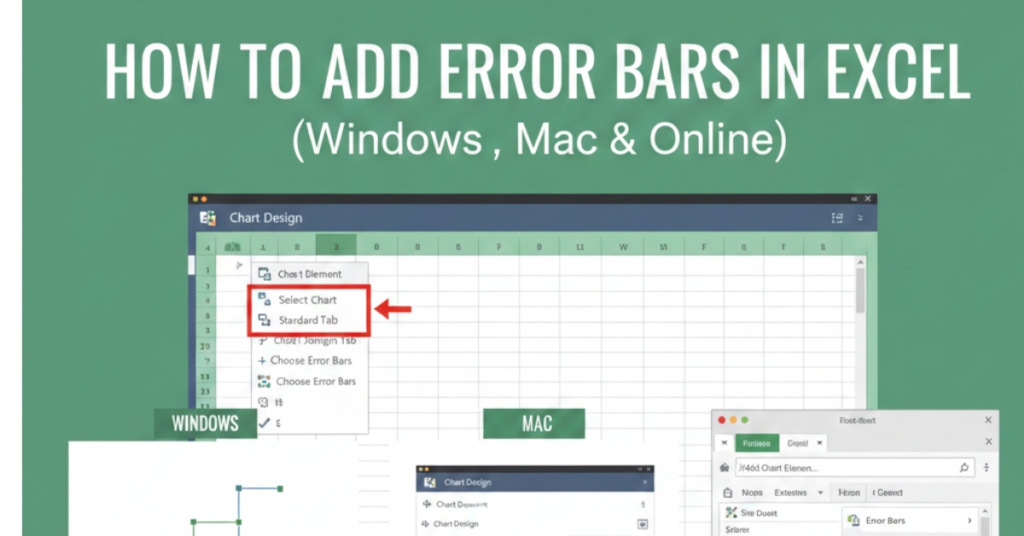
Select your chart by clicking anywhere on it.
-
Click the Chart Elements (+) button on the right.
-
Check the Error Bars box.
-
Click the arrow next to it to choose:
-
Standard Error
-
Standard Deviation
-
Percentage
-
More Options
-
Adding Custom Error Bars
-
Click More Options.
-
Choose Custom under Error Amount.
-
Click Specify Value.
-
Select your positive and negative error value ranges.
This method is ideal when your error values come from calculations or experiments.
How to Add Error Bar in Excel on Mac
If you’re wondering how to add error bar in Excel Mac, the steps are slightly different but still simple.
Steps for Excel on macOS
-
Click your chart to activate it.
-
Go to the Chart Design tab.
-
Select Add Chart Element.
-
Choose Error Bars and pick your option.
Custom Error Bars on Mac
-
Open Format Error Bar
-
Choose Custom
-
Enter or select your value ranges
Mac users have the same functionality—it’s just tucked into different menus.
How to Add Error Bars in Excel Online
Excel Online is lighter than the desktop version, but yes—it still supports error bar.
Steps for Excel Online
-
Click your chart.
-
Select Chart from the top menu.
-
Click Error Bar (if available).
-
Choose from basic error bar options.
Important Limitations
-
Custom error bars may not be supported
-
Advanced formatting options are limited
If precision matters, consider opening the file in the desktop app.
How to Customize Error Bars in Excel
Once error bars are added, you can fine-tune them.
Customization Options
-
Line color and thickness
-
Direction (plus, minus, or both)
-
Cap style (with or without end caps)
To edit:
-
Right-click an error bar
-
Select Format Error Bar
-
Adjust settings in the sidebar
Small tweaks can make your chart much easier to read.
Common Mistakes to Avoid
Even experienced Excel users slip up here.
-
Using standard deviation when standard error is needed
-
Applying error bars without explaining them
-
Adding error bars to inappropriate chart types
-
Overloading charts with unnecessary visuals
A clean chart with well-chosen error bars always wins.
FAQs About Adding Error Bars in Excel
How do I add error bar in Excel for bar charts?
Select the bar chart, click Chart Elements (+), then choose Error Bar. The process is the same as line charts.
Why can’t I see error bar in Excel Online?
Excel Online has limited chart features. Some chart types or custom error bars may not be supported.
Can I add error bar manually in Excel?
Yes. Use Custom Error Bar and specify your own positive and negative values.
What’s the difference between standard deviation and standard error?
Standard deviation shows data spread, while standard error estimates how accurate the mean is.
Do all Excel versions support error bars?
Most desktop versions do. Excel Online supports basic error bars, but advanced options may require the desktop app.
Conclusion: Make Your Excel Charts More Trustworthy
Learning how to add error bars in Excel is a small skill that makes a huge difference. Whether you’re using Windows, Excel on Mac, or Excel Online, error bars help your charts tell the full story—uncertainty and all.If you’re serious about data visualization, take the extra minute to add them. Your audience (and your credibility) will thank you.